


| |

This chapter provides guidelines and instructions you need for installing your Cisco 7500 series router, including rack-mounting and general installation considerations. This chapter also includes a rack-mounting procedure for the Cisco 7505, however, rack-mounting procedures for the Cisco 7507, Cisco 7513, and Cisco 7576 are far more extensive and beyond the scope of this publication.
For Cisco 7507, Cisco 7513, and Cisco 7576 rack-mounting procedures, refer to the following two publications, which accompany the Cisco 7507, Cisco 7513, and Cisco 7576 rack-mount kit (ACS-7000RMK=):
Both of these publications are available on the Documentation CD-ROM and on
Cisco Connection Online (CCO).
Before you begin the installation procedures, we recommend that you also refer to the following sections in ""Preparing for Installation":
Before beginning the installation, the Cisco 7500 series router should already be in the area where you will install it, and your installation location should already be determined. Ensure that you have planned a clean, safe location for the chassis and that you have considered the following:
Before you connect power or turn on power to your router, we strongly recommend that you provide an adequate chassis ground (earth) connection for your router chassis. Chassis grounding receptacles are provided on each Cisco 7500 series router chassis.
To ensure the chassis grounding connection that you provide is adequate, you will require the following parts and tools:
Use the following procedure to attach the grounding lug to the chassis grounding receptacles on your router chassis:
Step 1 Locate the chassis grounding receptacles on your router chassis. Refer to the chapter "Product Overview" and locate the chassis grounding receptacles as follows: for the Cisco 7505, refer to Figure 1-1; for the Cisco 7507, refer to Figure 1-5; for the Cisco 7513, refer to Figure 1-7; for the Cisco 7576, refer to Figure 1-10.
Step 2 Insert the screws through the holes in the grounding lug and into chassis grounding receptacles. (See Figure 3-1.) Ensure that the grounding lug does not interfere with other router hardware, such as processor modules, and so forth.
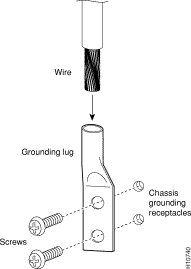
Step 3 Use the Phillips screwdriver to carefully tighten the two screws until the grounding lug is held firmly to the chassis. Do not overtighten the screws.
Step 4 Use the wire stripping tool to strip one end of the 6-AWG wire approximately 0.75 inches (19.05 mm).
Step 5 Insert the 6-AWG wire into the top of the wire receptacle on the grounding lug. (See Figure 3-1.)
Step 6 Use the crimping tool to carefully crimp the wire receptacle around the wire; this step is required to ensure a proper mechanical connection.
Step 7 Prepare the other end of the 6-AWG wire and connect it to the appropriate grounding point at your site to ensure an adequate chassis ground.
This completes the procedure for providing a chassis ground connection.
After you ensure that your site environment meets all guidelines, choose from the following sections depending on the Cisco 7500 series model you plan to install:
Then refer to the section "What Do I Do Now?" on page 3-48.
This section provides procedures for installing, rack-mounting, and attaching the cable-management brackets on a Cisco 7505, and for connecting a power cable to the power supply.
Figure 3-2 shows a flowchart that illustrates the recommended order of procedures to install the Cisco 7505 router and attach external cables to it. It also indicates the Cisco publications you should refer to for more detailed information.
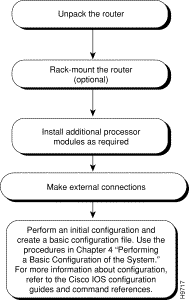
Depending on your configuration, you might need to insert additional or new processor modules in your Cisco 7505. To insert or remove interface processors, you do not need to turn off power to the system. However, you must turn off the system power before you insert or remove the RSP1or RSP4.
You need a number 1 Phillips or 3/16-inch, flat-blade screwdriver to remove any fillers (blank processor carriers) and to tighten the captive installation screws that secure the processor module in its slot. Whenever you handle modules, you should use an ESD-preventive wrist strap or other grounding device to prevent ESD damage.
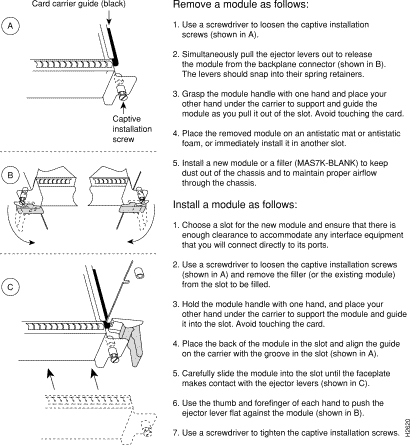
You can install interface processors (as shown in the following illustration) in any of the four interface processor slots, numbered 0 through 3 from bottom to top when viewing the chassis from the rear. (Refer to the illustration of the Cisco 7505 in Figure 1-2, in the chapter "Cisco 7500 Series Product Overview.") The top slot (slot 4) must contain the RSP1 or RSP4, which is a required system component. The processor carriers are keyed so you cannot incorrectly install them in the chassis slots.
 |
Caution To prevent the overheating of internal components, always install fillers in empty slots to maintain the proper flow of cooling air across the cards. To prevent ESD damage, handle processor modules by the handles and carrier edges only. |
Figure 3-3 illustrates the procedures for removing and installing processor modules in the Cisco 7505.
 and
Replacing Processor Modules (Cisco
7505)
and
Replacing Processor Modules (Cisco
7505)
Before you install the Cisco 7505, decide where to install the router. If you intend to rack-mount the router, proceed to the section "Rack-Mounting the Cisco 7505." If you do not intend to rack-mount the router, follow these steps to install the Cisco 7505 on a bench or tabletop:
Step 1 Make sure that your installation area is free of debris and dust.
Step 2 Make sure your path between the chassis and where you will place it is unobstructed.
|
Caution To prevent damage to the chassis and components, never attempt to lift or tilt the chassis with the handles on the interface processors. These handles are not designed to support the weight of the chassis. |
Step 3 Carefully place the chassis on the tabletop or bench.
Step 4 On the chassis, ensure that all captive screws (on the processor modules, and so forth) are tightened and the components are secure.
Step 5 For an AC-input power supply: push the cable retention clip away from the power receptacle and plug in the power cable.
Step 6 Secure the cable in the power supply receptacle by pushing the cable retention clip until it snaps into place around the cable connector.
Step 7 Connect the opposite end of the power cable to an appropriate power source.
|
Caution Do not turn on any power supplies until you are ready to power up the system. The interlock switch that locks the power supply in the slot also turns on the system power. |
Before you begin the optional rack-mount installation, have the following tools and parts on hand:
 |
Warning To prevent bodily injury when mounting or servicing this unit in a rack, you must take special precautions to ensure that the system remains stable. |
The following guidelines are provided to ensure your safety:
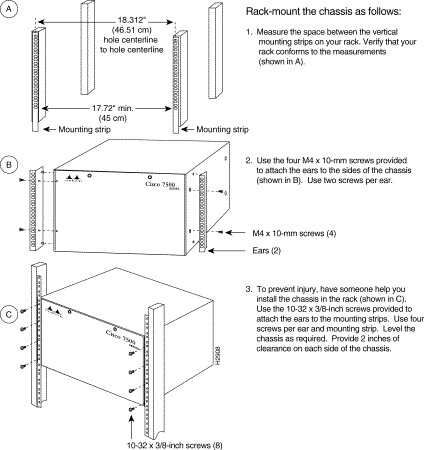
Figure 3-4 illustrates the Cisco 7505 rack-mount procedure.
 7505
7505
The cable-management brackets for the Cisco 7505 are designed to keep network interface cables untangled and orderly, and to prevent cables from hindering access to interface processors in the lower slots. Install the brackets before connecting network interface cables to the interface processor ports; otherwise, you will probably need to disconnect the cables to install the screws that secure the brackets.
The cable-management brackets attach to the interface processor end of the chassis.
To install the brackets, you need a number 1 Phillips screwdriver, two cable-management brackets, and six M3 x 8-mm Phillips panhead screws.
Follow the steps in Figure 3-5 to install the cable-management brackets on the Cisco 7505.
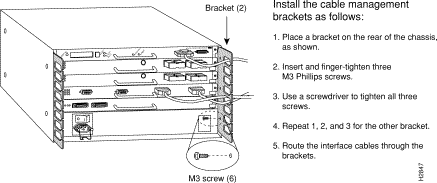
If necessary, feed nylon or plastic cable ties through the holes provided in the brackets to secure small-gauge cables or cable bundles. Loop cables where possible, but do not exceed the recommended minimum bend radius for your optical-fiber cables.
This section includes the procedure for connecting power to the Cisco 7505 DC-input power supply. The DC-input power supply is already installed in the Cisco 7505 when you receive it. This procedure assumes you ordered a DC-input power supply with your Cisco 7505 and requires a twin-lead, 10 AWG cable for terminal block connections, a single 10 AWG wire for the ground connection, and a 3/16-inch flat-blade screwdriver to loosen all captive screws on the terminal block and terminal block cover.
|
Warning Before performing any of the following procedures, ensure that power is removed from the DC circuit. To ensure that all power is OFF, locate the circuit breaker on the panel board that services the DC circuit, switch the circuit breaker to the OFF position, and tape the switch handle of the circuit breaker in the OFF position. |
|
Warning Before working on a chassis or working near power supplies, unplug the power cord on AC units or disconnect the power at the circuit breaker on DC units. This unit might have more than one power cord. To reduce the risk of electric shock, disconnect the two power supply cords before servicing the unit. |
Use this procedure to connect power to a DC-input power supply in the Cisco 7505:
Step 1 Loosen the two captive screws that secure the terminal block cover. (See Figure 3-6a.)
Step 2 Pull the terminal block cover away from the terminal block. (See Figure 3-6b.)
Step 3 Feed the return (RTN) and -48V wires through the large hole in the terminal block cover. (See Figure 3-6c.)
Step 4 Attach a nylon cable tie to secure the cable leads to the terminal block cover. (See Figure 3-6c.)
Step 5 Attach the RTN and -48V leads to the terminal block. Note the color coding. (See Figure 3-6d.) Color code selection depends on the color code of the DC power source at your site. Typically, green or green/yellow is used for ground, black is used for RTN, and red or white is used for -48V. No matter which color coding is used, make certain it matches that used at the DC source.
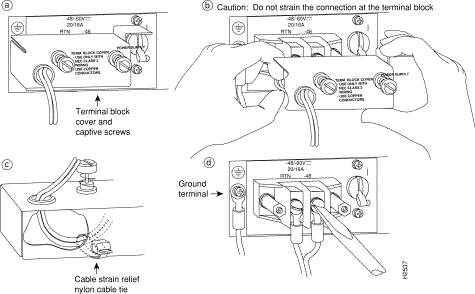
Step 6 Attach the ground cable to the ground terminal. (See Figure 3-6d.)
Step 7 Replace the terminal block cover. (See Figure 3-6b.)
Step 8 Tighten the captive screws on the terminal block cover. (See Figure 3-6a.)
This completes the procedure for attaching DC-input cable to the Cisco 7505 DC-input power supply, as well as procedures required to install the Cisco 7505.
For information on how to connect cables to the RSP, refer to the section "Making Cable Connections to the RSP" on page 3-45, and then proceed to the section "What Do I Do Now?" on page 3-48.
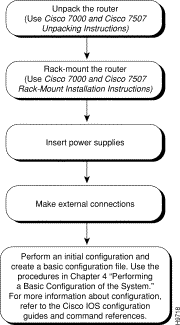
This section provides procedures for installing your Cisco 7507 and for connecting power cables to power supplies. Figure 3-7 illustrates the order of procedures to install the Cisco 7507 router and connect cables. It also indicates the Cisco publications you should refer to for more detailed information.
Depending on your configuration, you might need to insert additional or new processor modules in your Cisco 7507. To insert or remove interface processors, you do not need to turn off power to the system. However, if the system is operating, you must turn off the system power before you insert or remove an RSP2 or RSP4.
You need a number 1 Phillips or 3/16-inch, flat-blade screwdriver to remove any fillers (blank processor module carriers) and to tighten the captive installation screws that secure the processor module in its slot. Whenever you handle modules, you should use an ESD-preventive wrist strap or other grounding device to prevent ESD damage.
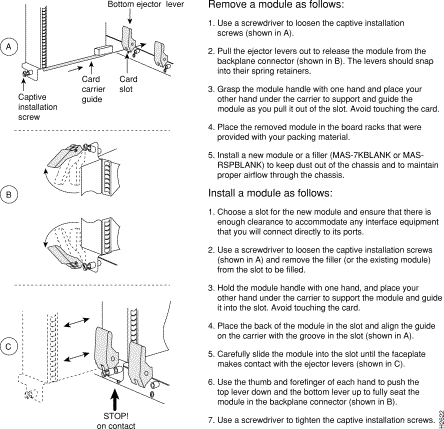
You can install interface processors (as shown in the following figure) in any of the five interface processor slots, which are numbered 0 and 1, and 4 through 6, from left to right when viewing the chassis from the rear. (Refer to Figure 1-5, in the chapter "Cisco 7500 Series Product Overview.") Slot 2 or 3 contains the RSP2 or RSP4, which is a required system component.
|
Caution To prevent overheating internal components, always install fillers in empty slots to maintain the proper flow of cooling air across the cards. To prevent ESD damage, handle processor modules by the handles and carrier edges only. |
Figure 3-8 illustrates the procedure for removing and replacing processor modules in the Cisco 7507.
If you have a Cisco 7507 with an RSP2 configured as the system slave, we strongly recommend that you use the following procedure to remove and replace an interface processor:
Step 1 Remove the slave RSP2 (also called a processor module) using the appropriate procedure in Figure 3-8.
Step 2 Wait 15 seconds.
Step 3 Remove and replace the interface processor (also called a processor module) using the procedures in Figure 3-7.
Step 4 Wait 15 seconds.
Step 5 Reinsert the slave RSP2 using the appropriate procedure in Figure 3-8.
 and Replacing Processor Modules (Cisco 7507)
Before you install the Cisco 7507, decide where to install the router.
On the rear of the chassis, do the following:
Step 1 Check the ejector levers to ensure that each RSP and all interface processors are securely installed.
Step 2 Check the captive installation screws on each RSP and each interface processor, and tighten any that are loose.
Step 3 Ensure that both power supply bays are empty.
|
Warning Two people are required to lift the chassis. Grasp the chassis underneath the lower edge and lift with both hands. To prevent injury, keep your back straight and lift with your legs, not your back. To prevent damage to the chassis and components, never attempt to lift the chassis with the handles on the power supplies or on the interface processors, or by the plastic panels on the front of the chassis. These handles were not designed to support the weight of the chassis. |
Step 4 Two people are required to perform this step. With a person positioned at either side of the chassis, grasp the bottom edge of the chassis with one hand near the front and the other near the back. Slowly lift the chassis in unison. Avoid sudden twists or moves to prevent injury.
|
Caution To prevent damage to the chassis and components, never attempt to lift or tilt the chassis with the handles on the interface processors. These handles are not designed to support the weight of the chassis. |
Step 5 Place the chassis on a bench or tabletop where the air intake vent on the front of the chassis (the bottom front panel) is not drawing in exhaust air from other equipment.
Step 6 Ensure that you have at least three or four feet of clearance around the rear of the chassis. You will need this space to install the power supplies and perform maintenance on the chassis.
Step 7 Make sure that the area in which you install the chassis is free of debris and dust. Also make sure your path to the area is unobstructed.
After you correctly position the chassis, proceed to the next section, "Installing Cisco 7507 Power Supplies."
Your Cisco 7507 was shipped with the power supplies removed. One power supply is shipped as standard equipment; a second power supply is optional. Install power supplies only after you have finally installed or rack-mounted the chassis.
|
Warning This product relies on the building's installation for short-circuit (overcurrent) protection. Ensure that a fuse or circuit breaker no larger than 120 VAC, 15A U.S. (240 VAC, 10A international) is used on the phase conductors (all current-carrying conductors). |
Always install the first power supply in the lower power supply bay and the second, if any, in the upper bay. In systems with dual power supplies and when separate power sources are available, connect each power supply to separate input lines, so in case of an input line failure, the second source will most likely still be available.
If you install a second power supply in the upper bay, use a screwdriver to loosen the captive screw and remove the cover plate. Save the plate and replace it whenever the system is operating with one power supply.
|
Warning Before working on a chassis or working near power supplies, unplug the power cord on AC units or disconnect the power at the circuit breaker on DC units. |
Following is the procedure for installing power supplies in the Cisco 7507:
Step 1 If possible, turn OFF the circuit breaker to which you will connect power and tape the breaker switch in the OFF position.
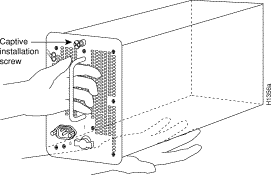
Step 2 Check the switch on the face of the power supply, and place it in the OFF (O) position. (See Figure 3-9.) The interlock tab should not extend out of the unit.
Step 3 Hold the power supply by the handle and place your other hand underneath to support the bottom. (See Figure 3-9.)
|
Caution Each power supply weighs approximately 20 pounds. To prevent dropping power supplies, use two hands to remove and install power supplies. |
Step 4 The power supply has rollers on the bottom end. Place the rollers inside the bay and position the power supply so that it is aligned to go straight into the bay.
Step 5 Push the power supply all the way into the bay. Do not use unnecessary force; firmly push the power supply back into the bay until its front panel is flush with the chassis rear panel.
|
Caution When inserting a power supply into the bay, do not use unnecessary force; slamming the power supply into the bay can damage the connectors on the rear of the supply and inside the chassis. |
Step 6 While firmly pressing the power supply faceplate so that is flush with the chassis rear panel, use a screwdriver to tighten the captive installation screw on the top of the power supply.
|
Caution Always tighten the captive installation screw at the top of the power supply before turning on the power switch. This screw prevents the power supply from shifting away from the internal connector and provides proper grounding for the supply. |
Step 7 For AC-input power supplies: push the cable retention clip away from the power receptacle and plug in the power cable.
Step 8 Secure the cable in the power supply receptacle by pushing the cable retention clip until it snaps into place around the cable connector.
Step 9 Connect the opposite end of the power cable to an appropriate power source.
|
Caution Do not turn on any power supplies until you are ready to power up the system. The interlock switch that locks the power supply in the slot also turns on the system power. |
If you are installing a second power supply, repeat Step 2 through Step 9. We recommend you connect the second power supply to a secondary power source for redundancy.
This section includes the procedure for connecting power to the Cisco 7507 DC-input power supplies.
The following procedure assumes you have already installed the power supplies using the procedure in the section "Installing Cisco 7507 Power Supplies" earlier in this chapter. The procedure requires 8 AWG cable for terminal block connections and a 3/16-inch flat-blade screwdriver to loosen the captive screws on the terminal block cover and the terminal block.
|
Warning Before performing any of the following procedures, ensure that power is removed from the DC circuit. To ensure that all power is OFF, locate the circuit breaker on the panel board that services the DC circuit, switch the circuit breaker to the OFF position, and tape the switch handle of the circuit breaker in the OFF position. |
|
Warning Before working on a chassis or working near power supplies, unplug the power cord on AC units or disconnect the power at the circuit breaker on DC units. |
|
Warning This unit might have more than one power cord. To reduce the risk of electric shock, disconnect the two power supply cords before servicing the unit. |
Use this procedure to connect power to DC-input power supplies in the Cisco 7507:
Step 1 Using a screwdriver, loosen the captive installation screws on the terminal block cover. (See Figure 3-10.)
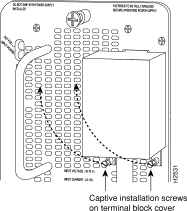
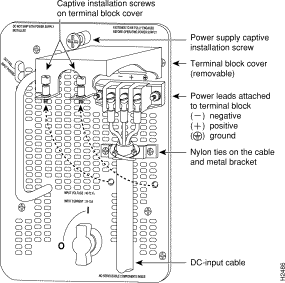
Step 2 Lift and remove the terminal block cover. (See Figure 3-11.)
Step 3 Wire the DC power supply using the appropriate lugs at the wiring end. (See Figure 3-11.)
|
Warning The illustration shows the DC power supply terminal block. Wire the DC power supply using the appropriate lugs at the wiring end, as illustrated. The proper wiring sequence is ground to ground, positive to positive (line to L), and negative to negative (neutral to N). Note that the ground wire should always be connected first and disconnected last. |
|
Warning Incorrectly wiring the terminal block could create a dangerous shock hazard and could damage the power supply, power source, and the chassis components. |
|
Warning When stranded wiring is required, use approved wiring terminations, such as closed-loop or spade-type with upturned lugs. These terminations should be the appropriate size for the wires and should clamp both the insulation and conductor. |
Step 4 Provide strain relief for the three DC-input cable by attaching two nylon ties around the cable and the metal bracket. (See Figure 3-11.)
Step 5 Install the terminal block cover over the terminal block, and tighten the captive installation screws. (See Figure 3-11.) Do not overtighten these screws. The recommended torque is 8.2 ±0.4 inch-lb.
|
Warning To prevent a short-circuit or shock hazard after wiring the DC-input power supply, replace the terminal block cover. |
|
Warning After wiring the DC power supply, remove the tape from the circuit breaker switch handle turn on power by moving the handle of the circuit breaker to the ON position. |
Step 6 Connect the opposite end of the DC-input cable to the DC power source.
If you are installing a second power supply, repeat Steps 1 through 6.
This completes the procedure for attaching power cables to the DC-input power supplies in a Cisco 7507, as well as the procedures required to install the Cisco 7507.
For information on how to connect cables to the RSP, refer to the section "Making Cable Connections to the RSP" on page 3-45, and then proceed to the section "What Do I Do Now?" on page 3-48.
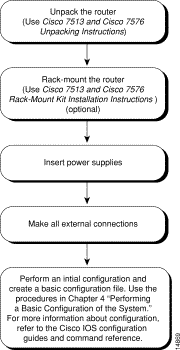
This section provides procedures for installing your Cisco 7513 or Cisco 7576 and connecting power cables to power supplies. The flowchart in Figure 3-12 illustrates the recommended order of procedures to install a Cisco 7513 or Cisco 7576 router. It also indicates the Cisco publications you should refer to for more detailed information.
Depending on your configuration, you might need to remove processor modules to reduce the weight of the chassis for rack-mount installation. To remove or insert interface processors, you do not need to turn off power to the system; however, on single power supply systems, you must turn off the system power before you insert or remove an RSP.
You need a number 1 Phillips or 3/16-inch, flat-blade screwdriver to remove any fillers (blank processor module carriers) and to tighten the captive installation screws that secure the processor module in its slot. Whenever you handle modules, you should use an ESD-preventive wrist strap or other grounding device to prevent ESD damage.
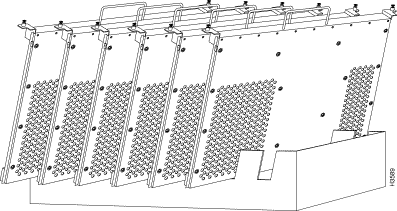
In the Cisco 7513 you can install interface processors in any of the 11 interface processor slots, numbered 0 through 5 for CyBus 0, and 8 through 12 for CyBus 1, from left to right when viewing the chassis from the rear. Slots 6 and 7 are the RSP slots and are reserved for the RSP2 or RSP4, which is a required system component. (Refer to the illustration of the card cage and processor modules in Figure 1-8, in the chapter "Cisco 7500 Series Product Overview.")
The backplane of the Cisco 7576 features two routers (router A and router B) on a single backplane. Router A consists of two CyBuses and uses interface processor slots 0 through 5, with an RSP (RSP4) in slot 6. Router B also consists of two CyBuses. It uses interface processor slots 8 through 12, with an RSP (RSP4) in slot 7. (Refer to the illustration of the card cage and processor modules in Figure 1-11, in the chapter "Cisco 7500 Series Product Overview.")
|
Caution If you are only configuring one of the two routers that make up the Cisco 7576, make sure to configure router A instead of router B. To configure router A install an RSP4 in slot 6, and install interface processors in slots 0 through 5. |
|
Caution To prevent the overheating of internal components, always install interface processor fillers (MAS-7KBLANK=) and RSP fillers (MAS-RSPBLANK=) in the appropriate empty chassis slots to maintain the proper airflow across the processor modules. To prevent ESD damage, handle processor modules by the handles and carrier edges only. |
Figure 3-14 illustrates the procedures for removing and replacing processor modules in the Cisco 7513 and Cisco 7576.
If you have a Cisco 7513 with an RSP2 configured as the system slave, we strongly recommend that you use the following procedure to remove and replace an interface processor:
Step 1 Remove the slave RSP2 (also called a processor module) using the appropriate procedure in Figure 3-14.
Step 2 Wait 15 seconds.
Step 3 Remove and replace the interface processor (also called a processor module) using the procedures in Figure 3-14.
Step 4 Wait 15 seconds.
Step 5 Reinsert the slave RSP2 using the appropriate procedure in Figure 3-14.
The chassis should already be in the area where you will install it, and your installation location should already be determined.
|
Warning Before working on a chassis or working near power supplies, unplug the power cord on AC units or disconnect the power at the circuit breaker on DC units. |
Specifically, consider the following:
|
Warning Two people are required to lift the chassis. Grasp the chassis underneath the lower edge and lift with both hands. To prevent injury, keep your back straight and lift with your legs, not your back. To prevent damage to the chassis and components, never attempt to lift the chassis with the handles on the power supplies, interface processors, or the blower module. These handles were not designed to support the weight of the chassis. |
To prevent damage to the chassis, lift the chassis by placing one hand on a side handle and the other beneath the front of the chassis, as shown in Figure 3-15. Do not lift the chassis using the blower module handle or the air intake vent.
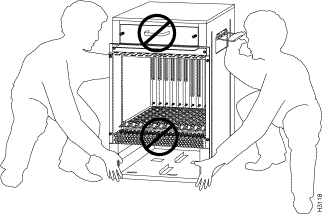
Follow these steps to install the Cisco 7513 and Cisco 7576:
Step 1 Remove all power supplies. (Refer to the section "Removing Cisco 7513 and Cisco 7576 Power Supplies" in the chapter "Maintaining the Cisco 7513 and Cisco 7576.") Both power supply bays must be empty if you plan to remove the card cage assembly in the following step. Ensure that both power supply bays are empty.
Step 2 Remove the card cage assembly. (Refer to the section "Removing the Card Cage Assembly" in the chapter "Maintaining the Cisco 7513 and Cisco 7576.") We recommend that you remove the card cage assembly to make the chassis easier to move; but this is not required.
|
Warning To prevent injury, avoid sudden twists or moves. To prevent damaging the air intake vent below the card cage opening, do not grasp the chassis below the air intake vent. |
Step 3 Two people are required to lift the chassis. Standing on each side of the chassis, grasp the side handle with one hand and with the other hand, grasp the chassis underneath the lower edge and lift with both hands. Slowly lift the chassis in unison. (Remember to place the chassis in a location where the air intake vent is not drawing in exhaust air from other equipment.)
Ensure that you temporarily have at least two to three feet of clearance around the rear of the chassis. You will need this space to install the power supplies, perform maintenance on the chassis, and observe LED indications. After installation, this space can be reduced as required; however, maintain a minimum of 19 inches (48.3 cm) behind the chassis.
Step 4 Replace the card cage assembly. (Refer to the procedure in the section "Installing the Card Cage Assembly" in the chapter "Maintaining the Cisco 7513 and Cisco 7576.")
Step 5 Replace the power supplies. (Refer to the section "Installing Cisco 7513 and Cisco 7576 Power Supplies" on page 3-38.)
Step 6 Replace the processor modules in the card cage. (Refer to the procedure in Figure 3-12.) Check all ejector levers and ensure the processor modules are securely installed; tighten any that are loose.
This completes the procedure for installing the Cisco 7513 and Cisco 7576. Proceed to the section "Attaching the Cisco 7513 and Cisco 7576 Cable-Management Bracket."
Use the following procedure to install the cable-management bracket. You will need a large, flat-blade screwdriver for this procedure.
Step 1 Locate the two slotted screws between the blower module and the card cage opening at the interface processor end of the router. (See Figure 3-16.)
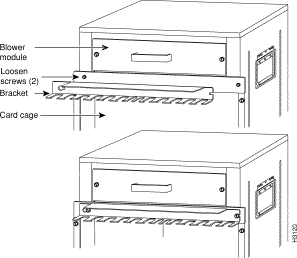
Step 2 Loosen these two screws using the flat-blade screwdriver.
Step 3 Place the bracket over the screws, as shown in Figure 3-16.
Step 4 Tighten the screws.
This completes the procedure for installing the cable-management bracket. Proceed to the section "Installing Cisco 7513 and Cisco 7576 Power Supplies."
Your Cisco 7513 or Cisco 7576 was shipped with the power supplies removed. The Cisco 7513 is shipped with one power supply as standard equipment; a second power supply is optional equipment. When purchased new (not upgraded), the Cisco 7576 comes with two AC-input power supplies as standard equipment. Install power supplies only after you have finally installed or rack-mounted the chassis.
Based on the NFPA 70 National Electrical Code, you should use a 35-amp overcurrent protector to meet the requirement for the overcurrent protector size of 125 percent of the load current, which is approximately 27A. An overcurrent protector rated for 30A can be used only if it has been listed by the safety agency for operation at 100 percent of its rating.
Follow this procedure to install a power supply in the Cisco 7513 and Cisco 7576:
Step 1 If possible, turn OFF the circuit breaker to which you will connect power and tape the breaker switch in the OFF position.
Step 2 Check the switch on the face of the power supply, and place it in the OFF (O) position. The interlock tab should not extend out of the unit.
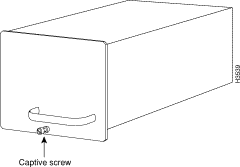
Step 3 Hold the supply as shown in Figure 3-17 and slide it into the power supply bay. (See Figure 3-18.) Push the supply all the way into the chassis until the sides are flush against the chassis frame. To prevent damaging the backplane connector, do not jam the power supply into the bay.
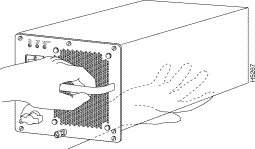
Step 4 While firmly pressing the power supply faceplate so that is flush with the chassis rear panel, use the large slotted screwdriver to tighten the captive screw that secures the power supply to the chassis frame. (See Figure 3-18.)
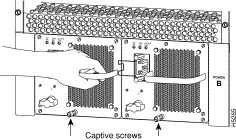
Step 5 For AC-input power supplies---push the cable retention clip away from the power receptacle, and plug in the power cable.
Step 6 Secure the cable in the power supply receptacle by pushing the cable retention clip until it snaps into place around the cable connector.
Step 7 After the AC power cable is connected, reconnect the power cable at the power source, remove the tape (if any) that you placed on the breaker switch, but do not turn on the breaker or power to the power supply.
|
Caution To maintain agency compliance requirements and meet EMI emissions standards in the Cisco 7513 and Cisco 7576 chassis with a single power supply, the power supply blank must remain in the empty power supply bay. (See Figure 3-19.) Do not remove this blank from the chassis except to install a second power supply. |
If you are installing both power supplies, repeat Steps 1 through 7 for the second power supply. To prevent system problems, do not mix AC-input and DC-input power supplies in the same chassis.
This procedure assumes you have already installed the power supplies using the procedure in the section "Installing Cisco 7513 and Cisco 7576 Power Supplies" earlier in this chapter. The power supplies rest on the floor of the chassis under the card cage. This procedure requires an 8-mm nut driver and 8 AWG cable for power supply connections. The DC-input cable must be routed through conduit from your power source to the power supply.
|
Warning Before performing any of the following procedures, ensure that power is removed from the DC circuit. To ensure that all power is OFF, locate the circuit breaker on the panel board that services the DC circuit, switch the circuit breaker to the OFF position, and tape the switch handle of the circuit breaker in the OFF position. |
|
Warning Before working on a chassis or working near power supplies, unplug the power cord on AC units or disconnect the power at the circuit breaker on DC units. |
|
Warning This unit might have more than one power cord. To reduce the risk of electric shock, disconnect the two power supply cords before servicing the unit. |
Use this procedure to connect power to DC-input power supplies in the Cisco 7513 and Cisco 7576:
Step 1 Turn OFF (O) the system power switch on the power supply you want to attach DC-input cable.
Step 2 Remove the 8-mm screws on the terminal block cover so the cover is free of the terminal block. (See Figure 3-20.)
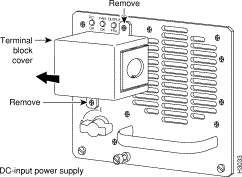
Step 3 Lift and remove the cover. (See Figure 3-20.)
|
Warning When stranded wiring is required, use approved wiring terminations, such as closed-loop or spade-type with upturned lugs. These terminations should be the appropriate size for the wires and should clamp both the insulation and conductor. |
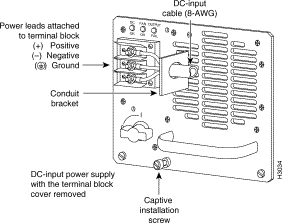
Step 4 Route the DC-input power cable through the conduit from your power source, through the conduit bracket on the power supply (see Figure 3-21), and make a sufficient length of wire available to attach to the three terminal block connections.
Step 5 Attach and tighten the conduit to the conduit bracket. How this conduit is attached depends on your site; its attachment is beyond the scope of this publication.
|
Warning The illustration shows the DC power supply terminal block. Wire the DC power supply using the appropriate lugs at the wiring end, as illustrated. The proper wiring sequence is ground to ground, positive to positive (line to L), and negative to negative (neutral to N). Note that the ground wire should always be connected first and disconnected last. |
|
Warning When installing the unit, the ground connection must always be made first and disconnected last. |
Step 6 Attach the ground wire to the ground terminals using the 8-mm nut driver. (See Figure 3-21.)
Step 7 Check the power supply's wiring and wiring color code to verify that it matches the wiring and color code at the DC source.
|
Warning Incorrectly wiring the terminal block could create a dangerous shock hazard and could damage the power supply, power source, and the chassis components. |
Step 8 Replace the terminal block cover. (Refer to Figure 3-20.)
|
Warning To prevent a short-circuit or shock hazard after wiring the DC-input power supply, replace the terminal block cover. |
Step 9 After the DC power cable leads are connected to the DC-input power supply, reconnect the power cable at the power source.
If you plan to add a second power supply, repeat Steps 1 through 9.
This completes the procedures required to install the Cisco 7513 and Cisco 7576.
For information on how to connect cables to the RSP, refer to the section "Making Cable Connections to the RSP" on page 3-45, and then proceed to the section "What Do I Do Now?" on page 3-48.
This section describes how to make cable connections to the console and auxiliary ports on the RSPs in the Cisco 7500 series routers. (Specific differences between RSPs are clearly noted.)
The system console port on the RSP is a DB-25 receptacle DCE port for connecting a data terminal, which will allow you to configure and communicate with your system. Use the console cable provided to connect the terminal to the console port on the RSP. The console port is located on the RSP next to the auxiliary port, as shown in Figure 3-22, and is labeled Console. (The RSP1 in the Cisco 7505 is oriented horizontally.)
Before connecting the console port, check your terminal's documentation to determine the baud rate of the terminal you will be using. The baud rate of the terminal must match the default baud rate (9600 baud). Set up the terminal as follows: 9600 baud, 8 data bits, no parity, and 2 stop bits (9600,8N2).
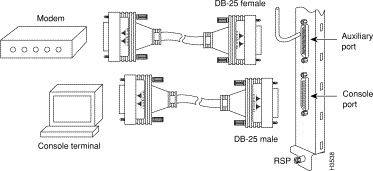
The auxiliary port on the RSP is a DB-25 plug DTE port for connecting a modem or other DCE device (such as a CSU/DSU or another router) to the router. The port is located next to the console port on the RSP and is labeled AUX. An example of a modem connection is shown in Figure 3-22.
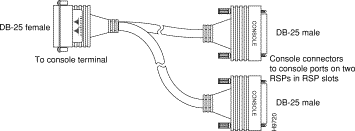
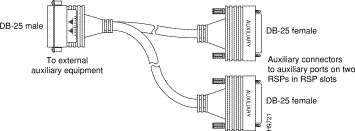
For systems with two RSP2s, two RSP4s, or one of each installed (one as master and one as slave in RSP slots 2 and 3 in the Cisco 7507, and slots 6 and 7 in the Cisco 7513, using the HSA feature), you can simultaneously connect to both console or auxiliary ports using a special Y-cable. The RSP2 or RSP4 defaults as the system master if only one is installed.
Figure 3-23 shows the console Y-cable, and Figure 3-24 shows the auxiliary Y-cable.
After you install your Cisco 7500 series router hardware, complete all power connections, and correctly attached a console terminal (and any other auxiliary equipment), you can connect the network interfaces in your Cisco 7500 series router to your external network using the appropriate Cisco-supplied and external cable-vendor supplied interface cables.
To connect the network interfaces, refer to one of the following:
After you have connected all network interface cables, refer to the chapter "Performing a Basic Configuration of the System" in this publication.
For more complete software and protocol configuration information, refer to the companion Cisco IOS software configuration publications, which are listed in the section "If You Need More Configuration Information" in the chapter "Performing a Basic Configuration of the System."
| |