
What is ASCII?
ASCII stands for American Standard
Code for Information Interchange, and it defines the various printable and
non-printable characters used by most computers. (IBM mainframes and AS/400s are
the general exception to this rule--they use a proprietary IBM format called
EBCDIC, or Extended Binary Coded Decimal Interchange Code.)
Although ASCII art uses characters most computers should be able to reproduce, this sort of art views best on a PC using a fixed-width font, like Courier.
If you're not sure about a character, or you want to see what your options are, you can use the Character Map application. Click Start, Programs, and Accessories to find it. Now select Courier New for the font. Character Map is the Windows equivalent of Symbol Hack. If you can't remember the Alt code to type on the numeric keypad that generates the character you want, you can select and copy characters to the Windows Clipboard using Character Map. Non-printable characters display as rectangles in this utility.
What if I can't draw?
If you're like me, and you
can't draw without clipart, head to Allen Mullen's excellent page at http://users.inetw.net/~mullen/asciiart.htm
which provides links to programs that can convert graphic files to ASCII art,
along with other pertinent information. Due to my severe limitations as an
artist, I've created a really simple sample piece of ASCII art. Wander through
the various links at Allen's site to get a better idea of what ASCII art is all
about.
How do I get an ASCII art picture onto my Palm
organizer?
You can make and save your drawing in the Windows Notepad
or another text editor, then cut and paste it into a new memo in Palm Desktop.
The next time you sync, the memo with your Palm device, the picture will be
installed on your organizer, as shown in Figure A. You'll probably need to tweak
it a little--add a couple of spaces here, delete a few spaces there--once you
have the picture on your Palm device.
FIGURE A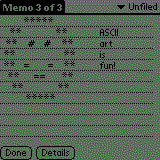
Here is a simple sample of ASCII art that I
drew using Notepad and synced to my Pilot. (Told you I can't draw!)
A few pointers
Please keep your .sig brief. The
general rule of netiquette according to Virginia Shea, the "Miss Manners" of the
Internet, is four lines or fewer. As the Jargon File states, "It has been
observed that the size of one's sig block is usually inversely proportional to
one's longevity and level of prestige on the net." Note that the sample I
created violates the preceding rule. If you see a piece of ASCII art that you'd
like to use in your .sig, please ask the creator's permission to use it before
you abscond with their hard work. If you want to see an example of blatant
disregard for the Internet style norms, so blatant it's somewhere beyond cool,
you'll need to check out Kibo's signature. See the product availability section
at the end of this article for a link.
How do you include ASCII art on your Palm computer's mail signature? Here's how you can include ASCII art in your .sig, for people who use the built-in Mail program, MultiMail Pro 2, or HandMail.
Note: The directions for the built-in mail program should also work for TGPostman users, since TGPostman relies and builds upon the existing mail program. I have not verified this, though. I also apologize to One Touch Communicator users for not including instructions. I don't own a copy of OneTouch Communicator, and did not have time to get an unlock code before deadline.
If you use the built-in Mail program on a PalmPilot Professional or Palm III, you will find the signature screen in the Preferences window of the Mail program (which you can find by tapping the Menu silk-screen button and choosing Preferences from the Options menu), as shown in Figure B.
FIGURE B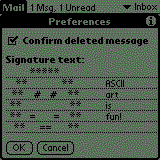
This is the signature screen in the
built-in Mail program.
MultiMail Pro 2 users will find the signature screen in by tapping menu, then options, then Mail Server, then SMTP, then Signature, as shown in Figure C.
FIGURE C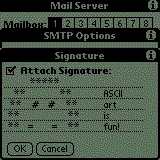
This is the signature screen in MultiMail
Pro 2.
HandMail users should look in Signatures under the Setup menu, as shown in Figure D.
FIGURE D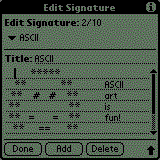
This is the Signature screen in
HandMail.
In any case, you can copy and paste your picture from the Memo Pad into the signature screen of your email program using either the Edit menu, or Command-C to copy and Command-P to paste.
To activate your signature in the built-in mail program, touch the New button, or select a message from the Drafts folder. Tap the Details button to bring up the Message Details window, then tap the Signature check box, as shown in Figure E.
FIGURE E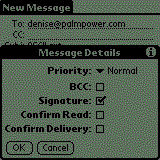
Activating your .sig in the built-in Mail
program.
MultiMail Pro 2 users will have activated their signature by tapping the check box next to Attach Signature, redisplayed here in Figure C.
FIGURE C
MultiMail Pro 2 users will have activated
their signature by tapping the checkbox next to Attach Signature.
In HandMail, click the Details button when you create your message. Pull down the Signature list and select the signature you wish to use, then tap OK, as shown in Figure F.
FIGURE F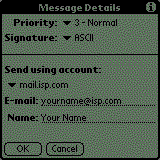
Activate your .sig in HandMail.
Trust but verify
You won't see your signature or
the ASCII art in your outgoing email, because the .sig doesn't get appended to
an outbound message until you actually send it. If you want to see what the
final product looks like before flaunting your creativity to the world, send
yourself an email to make sure there are no additional tweaks you need to make.
| Product availability and resources Florent Pillet's excellent utility, SymbolHack, is at http://perso.wanadoo.fr/fpillet/. Virginia Shea's Netiquette can be found at http://www.albion.com/netiquette. Eric S. Raymond's Jargon File is located at http://earthspace.net/jargon/. If you want to see a completely over-the-top email signature, check out Kibo's complete .sig at http://dir.yahoo.com/Computers_and_Internet/Communications_and_Networking/Electronic_Mail/Signature_Files/Kibo/. More information about MultiMail Pro 2 is at http://www.actualsoft.com/. Details on HandMail are at http://www.smartcodesoft.com/. TGPostman is available at http://www.isaac.cs.berkeley.edu/pilot/. You can find out about OneTouch Communicator at http://www.jpsystems.com/. You can purchase Symbol Hack, MultiMail Pro 2, HandMail, and OneTouch Communicator through PilotGear at http://www.pilotgear.com/. |
Claire Pieterek is a long-time Palm handheld user. On a mission to ditch her Franklin Planner, she bought her first--a Pilot 5000--in May, 1996. She currently owns a Japanese-language Sony Clie 650C, a Sony Clie 710C, and a Palm Zire 71, among others. She is most at home in Chicago and Kyoto, and is a student of life, the universe, and Japanese.